
Installation
- Download the
otterly.skillfile. - Open Claude Desktop.
- Go to Customize → Skills → + → Create Skill → Upload Skill and select the file.
Allow the OtterlyAI Domain
Before using the skill, you need to allowdata.otterly.ai in Claude’s
domain allowlist. Go to Claude Settings → Capabilities and add
data.otterly.ai to the Domain allowlist.
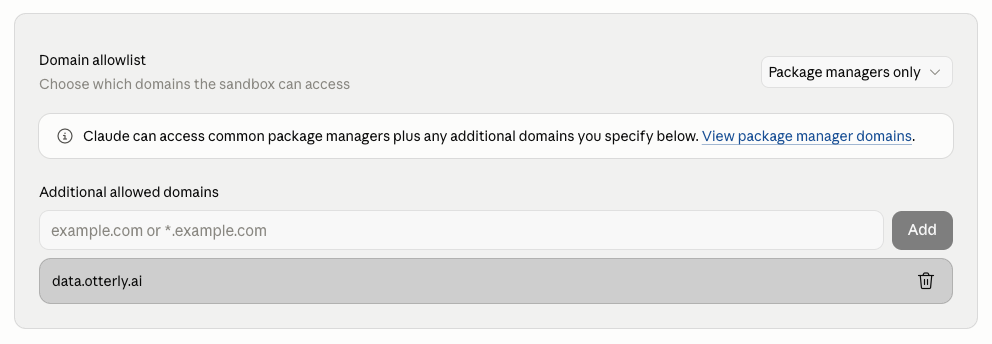
Add data.otterly.ai to the Domain allowlist in Claude Settings → Capabilities
Setting Your API Key
The skill needs anOTTERLY_API_KEY to authenticate against the OtterlyAI
Public API. There are two ways to provide it:
Option 1: Set it per session
At the start of each Claude Code session, simply tell Claude your API key:Option 2: Store it in the skill
You can edit the skill itself to include your API key permanently. Ask Claude to do it for you:Generating an API Key
If you don’t have an API key yet:- Sign in to the OtterlyAI dashboard.
- Go to API Keys.
- Click Create API key, choose the workspaces and permissions, then copy the key. You will only see it once.
A read-only key is sufficient for accessing brand reports, prompts,
citations, and recommendations. To perform GEO audits or other write
operations, you need a key with read and write permissions.
What You Can Do
Once the skill is active, just ask Claude naturally. For example:- “How’s my brand doing?” — get a summary of your brand visibility stats
- “Which prompts mention my brand the most?” — ranked prompt analysis
- “Are AI bots blocked from my site?” — crawlability audit
- “Show me what ChatGPT said about [topic]” — view actual AI engine responses
- “Run a content audit on https://example.com” — trigger an on-demand GEO audit
- “Compare my brand visibility this month vs last month” — period comparison