> ## Documentation Index
> Fetch the complete documentation index at: https://docs.otterly.ai/llms.txt
> Use this file to discover all available pages before exploring further.
# Claude Skill
> Use OtterlyAI directly inside Claude with the OtterlyAI skill
The OtterlyAI Claude Skill lets you query your brand visibility data — reports,
citations, prompts, recommendations, and GEO audits — directly from Claude.
## Installation
1. Download the `otterly.skill` file.
2. Open **Claude Desktop**.
3. Go to **Customize → Skills → + → Create Skill → Upload Skill** and
select the file.
The skill is automatically available in all new Claude sessions after
installation.
You can also install via the CLI if you prefer:
```bash theme={null}
claude skill add /path/to/otterly.skill
```
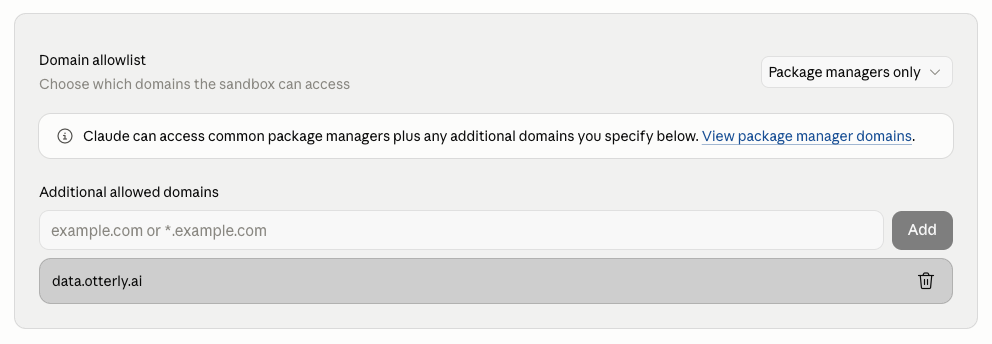
## Allow the OtterlyAI Domain
Before using the skill, you need to allow `data.otterly.ai` in Claude's
domain allowlist. Go to **Claude Settings → Capabilities** and add
`data.otterly.ai` to the **Domain allowlist**.
 ## Setting Your API Key
The skill needs an `OTTERLY_API_KEY` to authenticate against the OtterlyAI
Public API. There are two ways to provide it:
### Option 1: Set it per session
At the start of each Claude Code session, simply tell Claude your API key:
```
My OtterlyAI API key is oai_live_xxxx...
```
Claude will remember it for the duration of the session. This is the safest
option — your key is never persisted to disk.
### Option 2: Store it in the skill
You can edit the skill itself to include your API key permanently. Ask Claude
to do it for you:
```
Edit the OtterlyAI skill and set the OTTERLY_API_KEY to oai_live_xxxx...
```
Claude will update the skill's configuration so the key is available
automatically in every future session. This is more convenient but means the
key is stored locally on your machine.
Only store your API key in the skill on devices you trust. If your machine is
shared, prefer the per-session approach.
## Generating an API Key
If you don't have an API key yet:
1. Sign in to the [OtterlyAI dashboard](https://app.otterly.ai).
2. Go to [API Keys](https://app.otterly.ai/api-keys).
3. Click **Create API key**, choose the workspaces and permissions, then copy
the key. You will only see it once.
A **read-only** key is sufficient for accessing brand reports, prompts,
citations, and recommendations. To perform GEO audits or other write
operations, you need a key with **read and write** permissions.
## What You Can Do
Once the skill is active, just ask Claude naturally. For example:
* *"How's my brand doing?"* — get a summary of your brand visibility stats
* *"Which prompts mention my brand the most?"* — ranked prompt analysis
* *"Are AI bots blocked from my site?"* — crawlability audit
* *"Show me what ChatGPT said about \[topic]"* — view actual AI engine responses
* *"Run a content audit on [https://example.com](https://example.com)"* — trigger an on-demand GEO audit
* *"Compare my brand visibility this month vs last month"* — period comparison
The skill covers the full OtterlyAI Public API, including workspaces, brand
reports, KPIs, citations, prompts, recommendations, and GEO audits
(crawlability + content).
## Setting Your API Key
The skill needs an `OTTERLY_API_KEY` to authenticate against the OtterlyAI
Public API. There are two ways to provide it:
### Option 1: Set it per session
At the start of each Claude Code session, simply tell Claude your API key:
```
My OtterlyAI API key is oai_live_xxxx...
```
Claude will remember it for the duration of the session. This is the safest
option — your key is never persisted to disk.
### Option 2: Store it in the skill
You can edit the skill itself to include your API key permanently. Ask Claude
to do it for you:
```
Edit the OtterlyAI skill and set the OTTERLY_API_KEY to oai_live_xxxx...
```
Claude will update the skill's configuration so the key is available
automatically in every future session. This is more convenient but means the
key is stored locally on your machine.
Only store your API key in the skill on devices you trust. If your machine is
shared, prefer the per-session approach.
## Generating an API Key
If you don't have an API key yet:
1. Sign in to the [OtterlyAI dashboard](https://app.otterly.ai).
2. Go to [API Keys](https://app.otterly.ai/api-keys).
3. Click **Create API key**, choose the workspaces and permissions, then copy
the key. You will only see it once.
A **read-only** key is sufficient for accessing brand reports, prompts,
citations, and recommendations. To perform GEO audits or other write
operations, you need a key with **read and write** permissions.
## What You Can Do
Once the skill is active, just ask Claude naturally. For example:
* *"How's my brand doing?"* — get a summary of your brand visibility stats
* *"Which prompts mention my brand the most?"* — ranked prompt analysis
* *"Are AI bots blocked from my site?"* — crawlability audit
* *"Show me what ChatGPT said about \[topic]"* — view actual AI engine responses
* *"Run a content audit on [https://example.com](https://example.com)"* — trigger an on-demand GEO audit
* *"Compare my brand visibility this month vs last month"* — period comparison
The skill covers the full OtterlyAI Public API, including workspaces, brand
reports, KPIs, citations, prompts, recommendations, and GEO audits
(crawlability + content).